 Dockside
How to import Stocky purchase orders into a new app
What the Stocky purchase order export contains, which columns matter, and how to turn that CSV into suppliers, supplier codes, case sizes and costs again.
Stocky closed on August 31, 2026, so nothing new can be exported from it. This guide is for stores that saved their purchase order export before that date and want to use it, and it ends with what to do if you have no file at all.
What is in the Stocky export
The useful file is the purchase order export that has one row per product on each order. Every row says which product was ordered, on which purchase order, and usually the supplier's code for it, the case size and the cost you paid. Across a year or two of orders, that is a full record of who supplies each product and at what price.
Some stores also have a second, shorter file: the list of purchase orders, with one row per order and its vendor. It is only needed when the first file does not name the supplier.
The columns that matter
| Column | Used for | Needed? |
|---|---|---|
| SKU or Barcode | Finding the product in your store | One of the two |
| Cost | The last price paid to the supplier | At least one of these three |
| Supplier Code | The supplier's own code for the product | |
| Pack Size | How many units come in a case | |
| Vendor or Supplier | Which supplier the product comes from | Optional |
| Purchase order number, date, quantity | Keeping the order as history | Optional |
Column order does not matter, and common variations of the names are recognised (for example "Case Size" for "Pack Size", or "UPC" for "Barcode"). If you opened the file in a spreadsheet and saved it again, keep it as CSV.
Importing it into Dockside, step by step
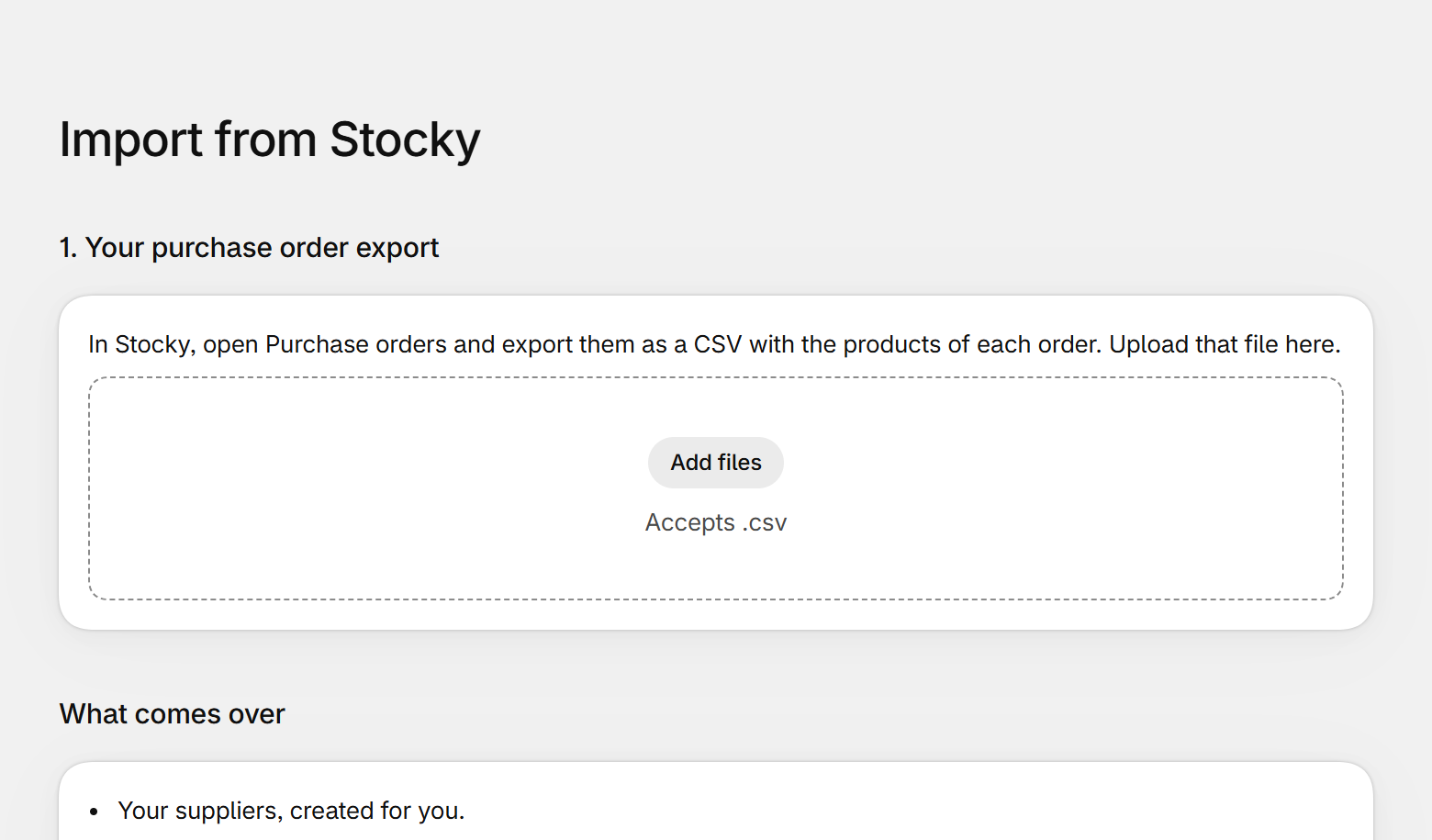
- Open Import from Stocky in the app's menu and choose the purchase order export. If it has no supplier column, add the purchase order list as the second file.
- Read the preview. Nothing is saved yet. You see each supplier that would be created or updated, how many products it gains, how many of them come with a cost, and how many past orders were found.
- Check the rows that were left out. Each one is listed with its line number and the reason, so you can fix the file or ignore it.
- Confirm. Suppliers, supplier codes, case sizes and costs are saved. Past purchase orders are stored as history.
What the import does and does not change
- It does not change your stock. Quantities in Shopify stay exactly as they are. Old orders are history, not deliveries.
- The newest cost wins. When a product appears on several orders, the cost and case size from the most recent one are kept.
- History does not use up the free plan. Imported orders are not counted as new purchase orders.
- You can run it again. Products that are already up to date are reported as unchanged.
Rows that get left out, and why
- No product in your store has this SKU or barcode. The product was deleted or its SKU changed since the order. Update the SKU in the file or skip it.
- More than one product has this SKU or barcode. The file cannot say which one was meant. Give the products different SKUs in Shopify, then import again.
- The supplier is not known. When the file does not name the supplier, the product's brand in Shopify is used instead and the preview says so. A row is left out only when there is no brand either. Add the purchase order list, or a Vendor column.
A single file can hold up to 20,000 rows. Split a longer one by year.
After the import
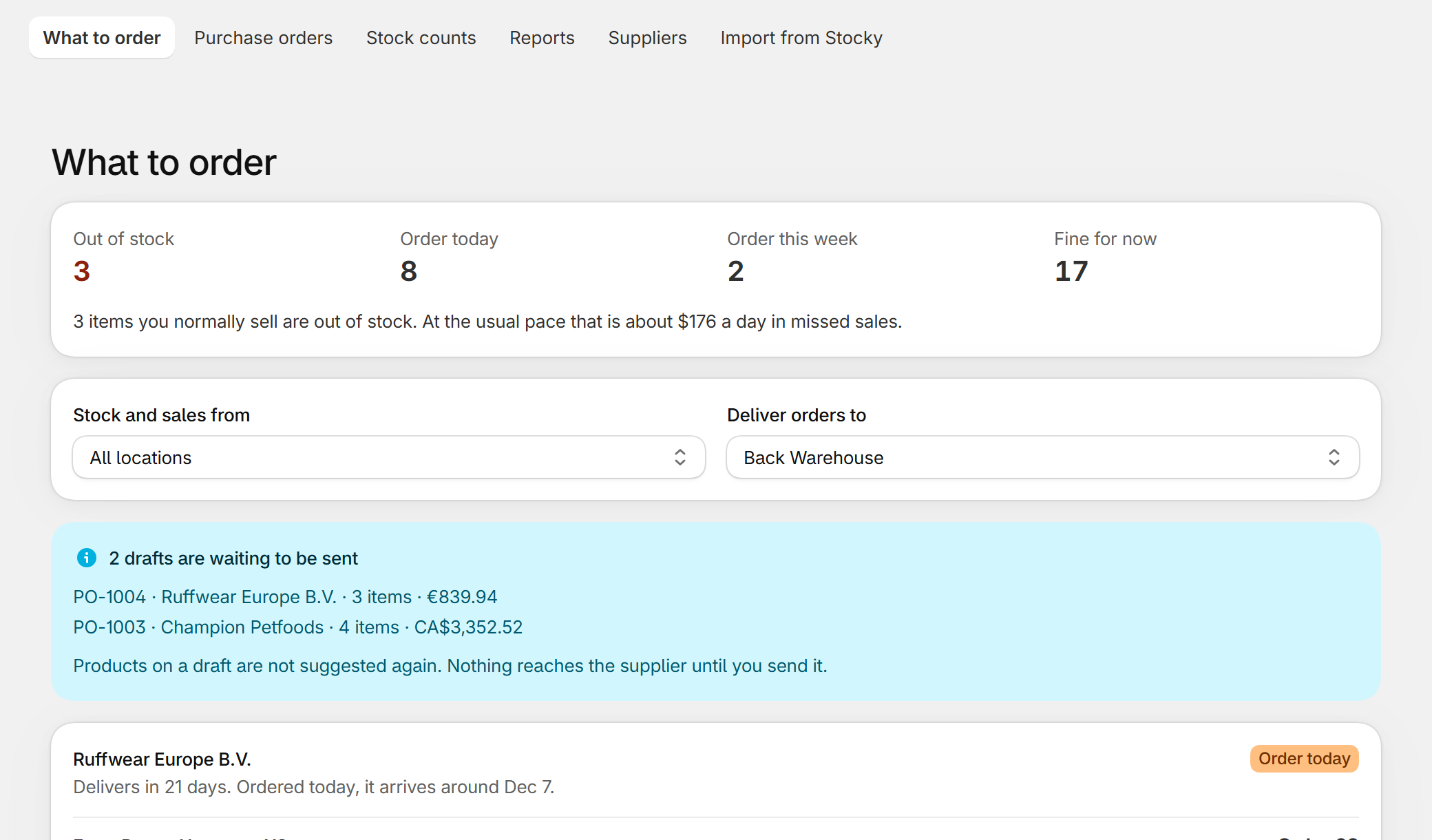
Open What to order. Because the case sizes and costs are now in place, suggested quantities come in full cases with a price, and you can turn them into a purchase order for each supplier. Lead times start from what you enter for the supplier and are then measured from your own deliveries.
If you never exported from Stocky
You are not stuck. Three things rebuild the same information:
- Create your suppliers and link them to the brands (vendors) already on your Shopify products.
- Ask each supplier for their current price list as a spreadsheet and import it; it carries codes, case sizes and costs.
- Let the app read your Shopify sales, which is all the reorder suggestions need.
For the wider picture of what replaced Stocky, see the Stocky alternative guide.
Dockside: Purchase Orders — purchase orders, receiving, stock counts and reorder suggestions inside your Shopify admin. Free for five new purchase orders a month.
More guides
- Stocky alternativeStocky closed on August 31, 2026. What it did, what Shopify's own purchase orders cover, and how to keep ordering, receiving and counting stock without a spreadsheet.
- Shopify purchase orders vs DocksideWhat the purchase orders inside the Shopify admin do, what they leave to you, and when a purchase order app like Dockside is worth adding.
- Purchase order template for Shopify storesThe fields a supplier needs on a purchase order, a plain template you can copy into a spreadsheet or an email, and the three ways to make one from a Shopify store.
- How to do a stocktake on ShopifyHow to count your stock and correct it in Shopify: what to prepare, the count step by step, what to check before you apply it, and the tools you can use.