 Dockside
How to do a stocktake on Shopify, step by step
How to count your stock and correct it in Shopify: what to prepare, the count step by step, what to check before you apply it, and the tools you can use.
A stocktake, or stock count, is counting what is really on the shelf and correcting what Shopify thinks you have. Stores do it because the two drift apart: damage, theft, a delivery typed in wrong, a return that never went back on the shelf. Dockside: Purchase Orders is our app, so read the part about it knowing who wrote it. The steps work with any tool.
Before you count
- Pick a quiet moment. Every sale during the count changes the number you are checking against. Count before opening, after closing, or one section at a time.
- Finish what is half done. Receive the deliveries that have arrived, ship the orders already picked, and put returns back. Otherwise they show up as differences.
- Decide what you are counting. One location, and inside it everything, one brand or one supplier. A small count you finish is worth more than a full one you abandon.
- Tidy first. Same product in one place, loose units back in their box, anything damaged set aside.
The count, step by step
- Start the count for one location. The tool saves the quantity Shopify expects for each product at that moment.
- Count what you see, not what you expect. Scan each barcode or type the quantity. If you can, hide the expected number from whoever is counting.
- Count everything in the section. Top shelves, the back room, the window display and the box under the counter.
- Look at the differences before you apply anything. Recount the big ones. Most large differences are a counting mistake or stock sitting somewhere else.
- Decide what to do with products nobody counted. Either leave them as they were or set them to zero. Setting them to zero is only right if you are sure the whole area was counted.
- Apply the count. Only now does Shopify's stock change, by the difference.
- Keep the result. Save or export it. Next time you will want to know which products keep going missing.
What to check in the differences
| What you see | Usual cause | What to do |
|---|---|---|
| Short by exactly one case | A delivery received in cases instead of units, or the other way round | Check the last purchase order for that product |
| One variant short, another over by the same amount | Sizes or colours mixed up when picking or receiving | Fix both, and check the labels |
| Short on small, expensive products | Theft or damage that was never written down | Count those more often |
| Over on everything from one supplier | A delivery put on the shelf but never received in the system | Receive the order instead of applying the count |
| Negative stock in Shopify | Sold before the delivery was received | Receive first, then count |
How often
A full count once or twice a year is common, often at the end of the financial year because the accountant needs the stock value (see how to get the month-end inventory value). Between full counts, count a small part every week: one brand, one shelf, or your best sellers. It takes minutes and catches problems while you can still remember what happened.
The tools
Shopify's own stock counts
This is from Shopify's help pages, read on November 18, 2026. The Shopify admin has stock counts under Inventory. You choose a location and the products, staff record quantities with a barcode scanner or by typing, and a manager can review and approve the result before inventory changes. Counting in the Shopify POS app needs a POS Pro subscription at that location. It costs nothing extra and is the first thing to try.
A spreadsheet
Export your inventory to a CSV file, type the counted quantities, and import it back. It works, but nothing protects you from a sale that happened between the export and the import.
Dockside
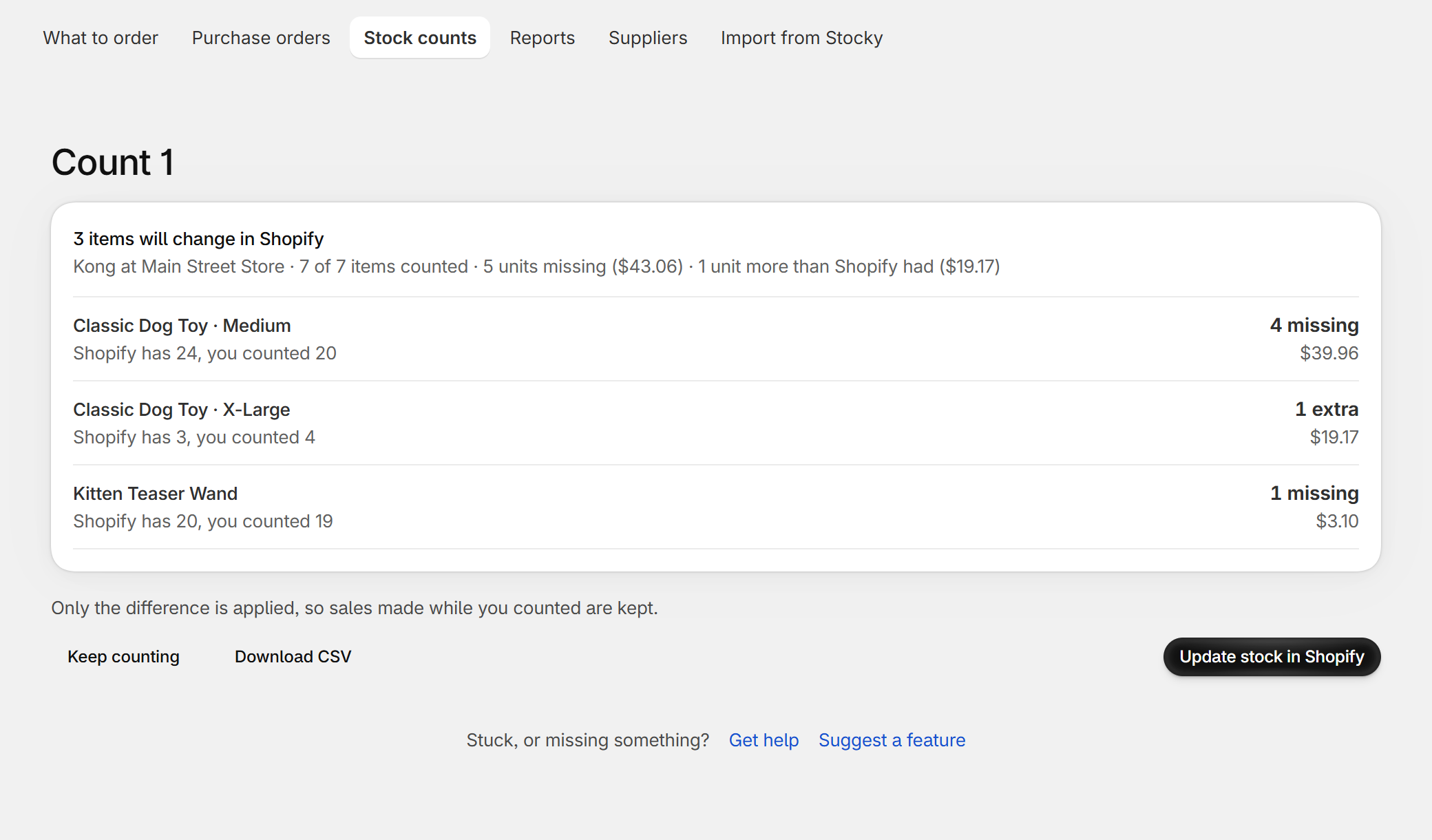
In Dockside you start a count for a location and choose everything, one brand or one supplier. You count by scanning or typing. Before you apply it, the count shows each difference in units and in money, using your product costs, so you know which ones are worth a recount. Products nobody counted are left as they were unless you choose to set them to zero. Counts sit next to purchase orders and receiving, so a late delivery is easy to tell apart from missing stock. It is free for five new purchase orders a month, then $29 a month; counts are not limited.
Questions
Do I have to close the store?
No, but count each section in one go and do not sell from it while you count.
What is the difference between a stocktake and a cycle count?
A stocktake usually means counting everything. A cycle count is counting a small part on a schedule, so that over a few weeks or months everything gets counted.
Stocky did my stocktakes. What now?
Stocky closed on August 31, 2026. See the Stocky alternative guide for what replaces each part of it.
Dockside: Purchase Orders — purchase orders, receiving, stock counts and reorder suggestions inside your Shopify admin. Free for five new purchase orders a month.
More guides
- Stocky alternativeStocky closed on August 31, 2026. What it did, what Shopify's own purchase orders cover, and how to keep ordering, receiving and counting stock without a spreadsheet.
- Import Stocky purchase ordersWhat the Stocky purchase order export contains, which columns matter, and how to turn that CSV into suppliers, supplier codes, case sizes and costs again.
- Shopify purchase orders vs DocksideWhat the purchase orders inside the Shopify admin do, what they leave to you, and when a purchase order app like Dockside is worth adding.
- Purchase order template for Shopify storesThe fields a supplier needs on a purchase order, a plain template you can copy into a spreadsheet or an email, and the three ways to make one from a Shopify store.